
Share your customer's PC screen
and solve problems anytime, anywhere
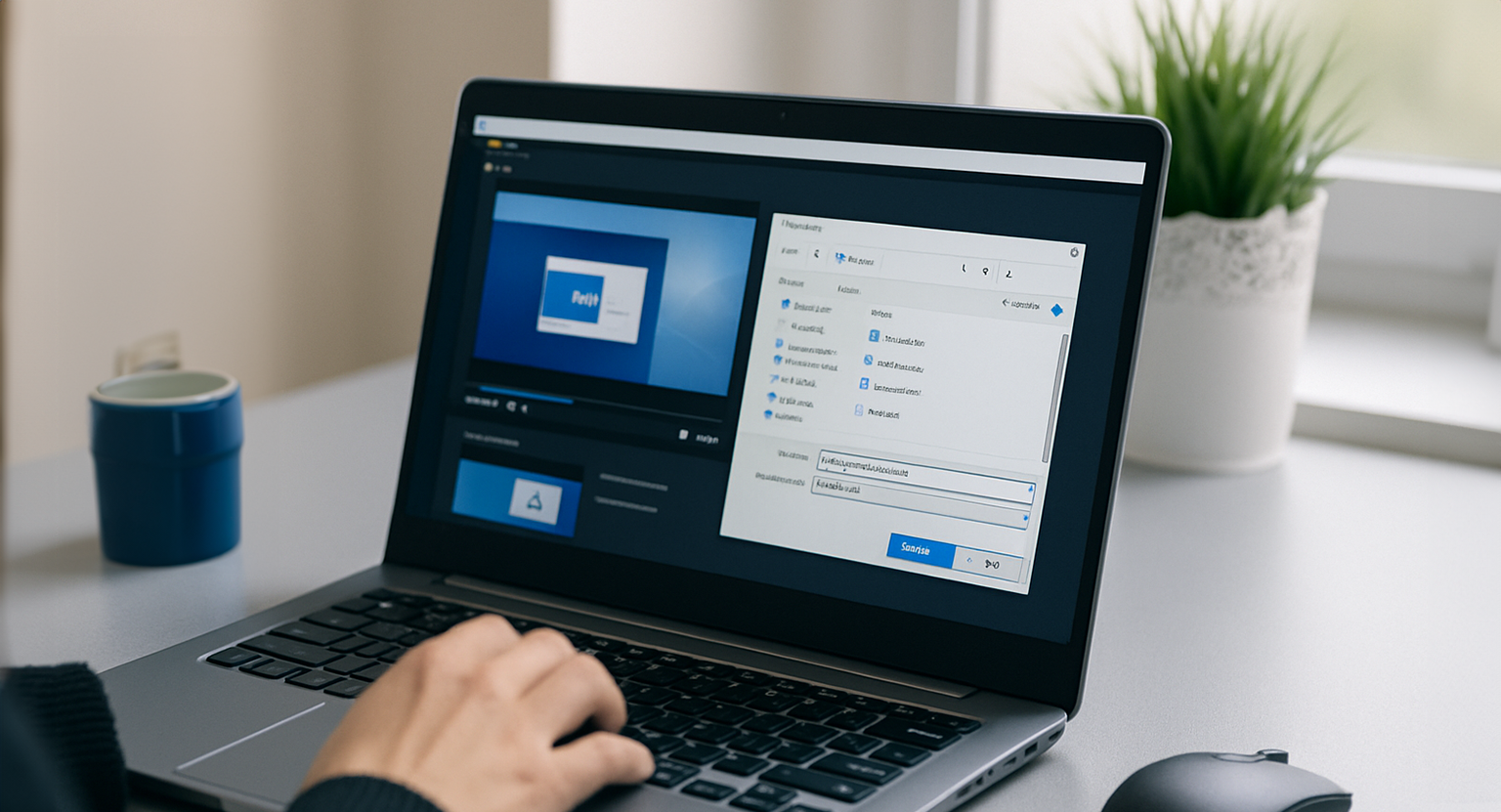
A dedicated program installed on the agent's PC shares and controls the customer's screen in real time.
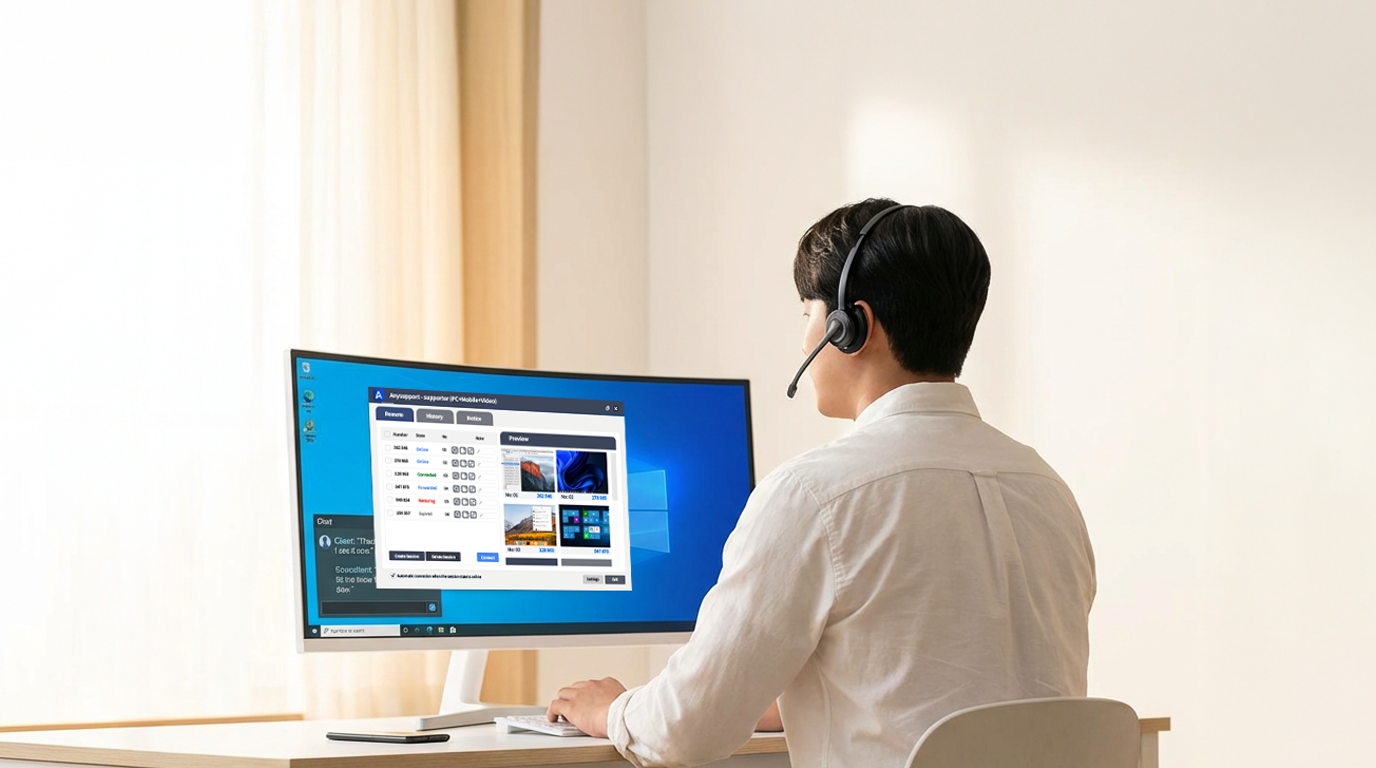
With multi-session monitoring and unlimited file transfer, one agent can support many customers quickly.
Who uses the Desktop Edition?
Used by companies that support customers by seeing their screens directly through screen sharing and remote control.
Applied across consulting, technical support, security operations, and more.
Need to view the screen
together during a call
Frequently maintain
internal systems
Need secure
remote operations
Need to guide customers
through software
Key Benefits at a Glance
Start with the three things that matter most.
Reliable Remote Control
A stable remote engine controls the customer's PC accurately and without interruption.
Multi-Session Monitoring
A single agent monitors and supports multiple customer screens at the same time.
Strong Security
AES-256 encryption, one-time authentication, and access logging keep operations safe.
See the customer's screen and fix it instantly
Even problems that are hard to explain over the phone are handled on the spot by sharing the customer's PC screen in real time and controlling the mouse and keyboard directly.
- Real-time screen sharing and remote control
- Safe collaboration with control handover
- Connection based on customer consent
Key Features
Core remote support features you can use right away.
Screen Share · Remote Control
Share and directly control the customer's screen
Unlimited File Transfer
Two-way transfer with no size limit
Multi-Session Monitoring
Manage multiple customer sessions at once
Screen Recording
Record and archive the support session
Live Chat
Text communication during the session
Auto-Reconnect After Reboot
Automatically reconnects to the customer's PC after it reboots.
Usage Statistics
Manage usage with charts
AES-256 Security
International-standard encryption
One agent, many customers at once
With multi-session monitoring, a single agent manages 7–10 customer PCs on one screen. Moving from sequential to parallel response dramatically cuts waiting time.
- Up to 10 customers supported per agent
- Real-time status for every session
- Shorter customer wait times
Getting started with PC remote support
Get started right away, with no complex setup.
Install the Agent Program
Install the AnySupport program on the agent's PC.
Agent Login
Log in with your account and start remote support.
Customer Connects
The customer enters the access code on the connection page and is connected instantly.
Supported environments
Agents sign in from a browser or session to provide support, and customers connect through the access page they receive.
For PC support, the customer's PC may need to run a one-time executable to establish the remote connection.
On iOS and some mobile devices, remote control may be limited by OS security policy; support is provided via screen sharing and drawing.
Some control features may be limited by the mobile device's OS and manufacturer policy.
For the best experience, we recommend using the latest browser version.
Available support features may vary depending on your AnySupport license.
Where this edition is used
Experience PC remote support for yourself
Use AnySupport free for 15 days — no credit card required.