
Start instantly, no install
Web Remote Support
Open a web browser and support your customers’ PCs and mobile devices from anywhere.
What is web remote support?
Not a new product — simply another way to connect, starting from a browser with no agent program to install.
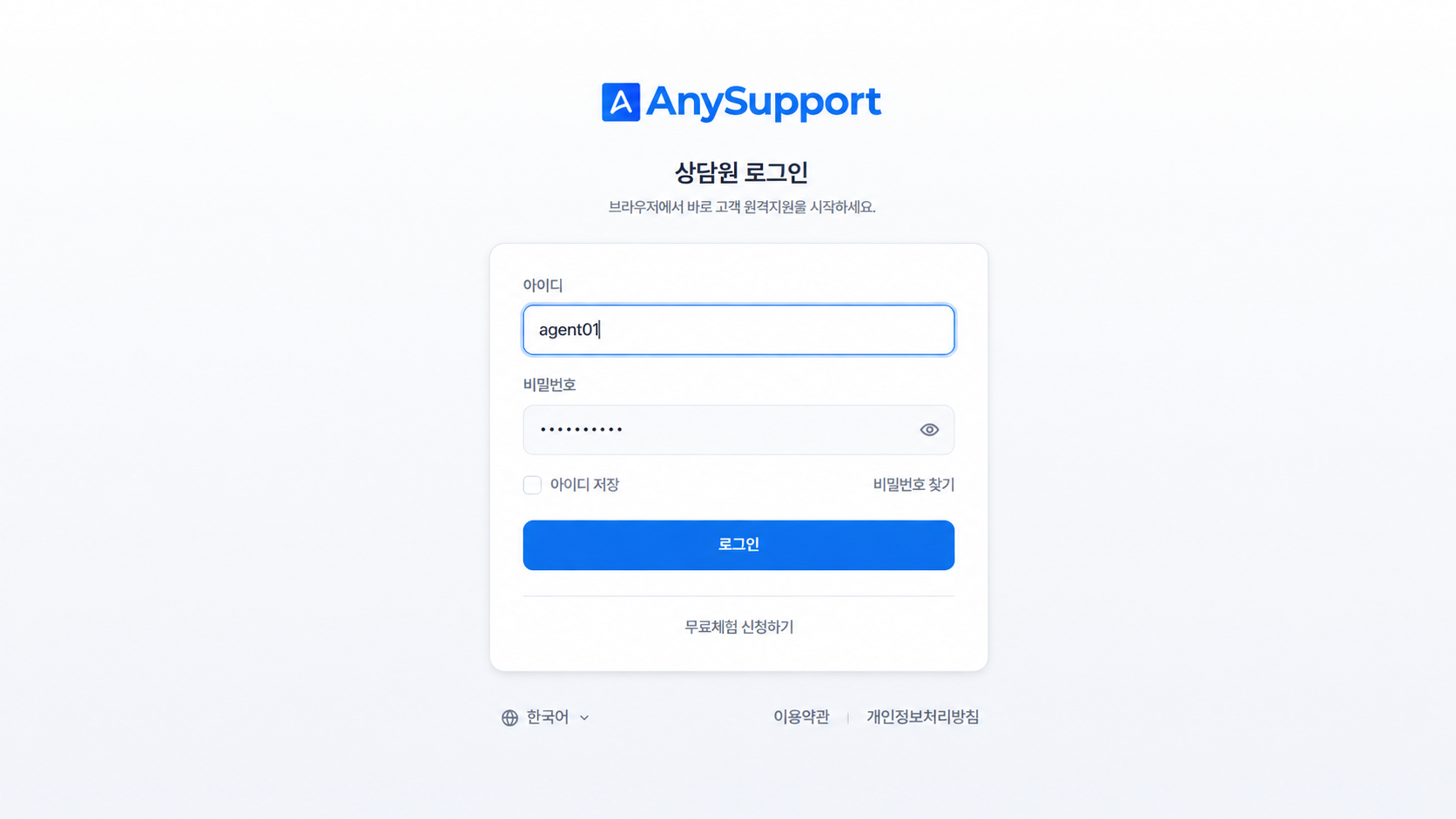
Start with a login
Sign in with an agent account and you are ready to support right away.
Fewer place and device limits
Support customers from the field, from home or on a shared PC — whatever you already use.
Secure connection with a one-time code
A one-time access code and encrypted traffic protect the connection.
Web remote support in 7 real screens
From agent login to access code, customer connection and session close
step through the actual browser screens yourself.
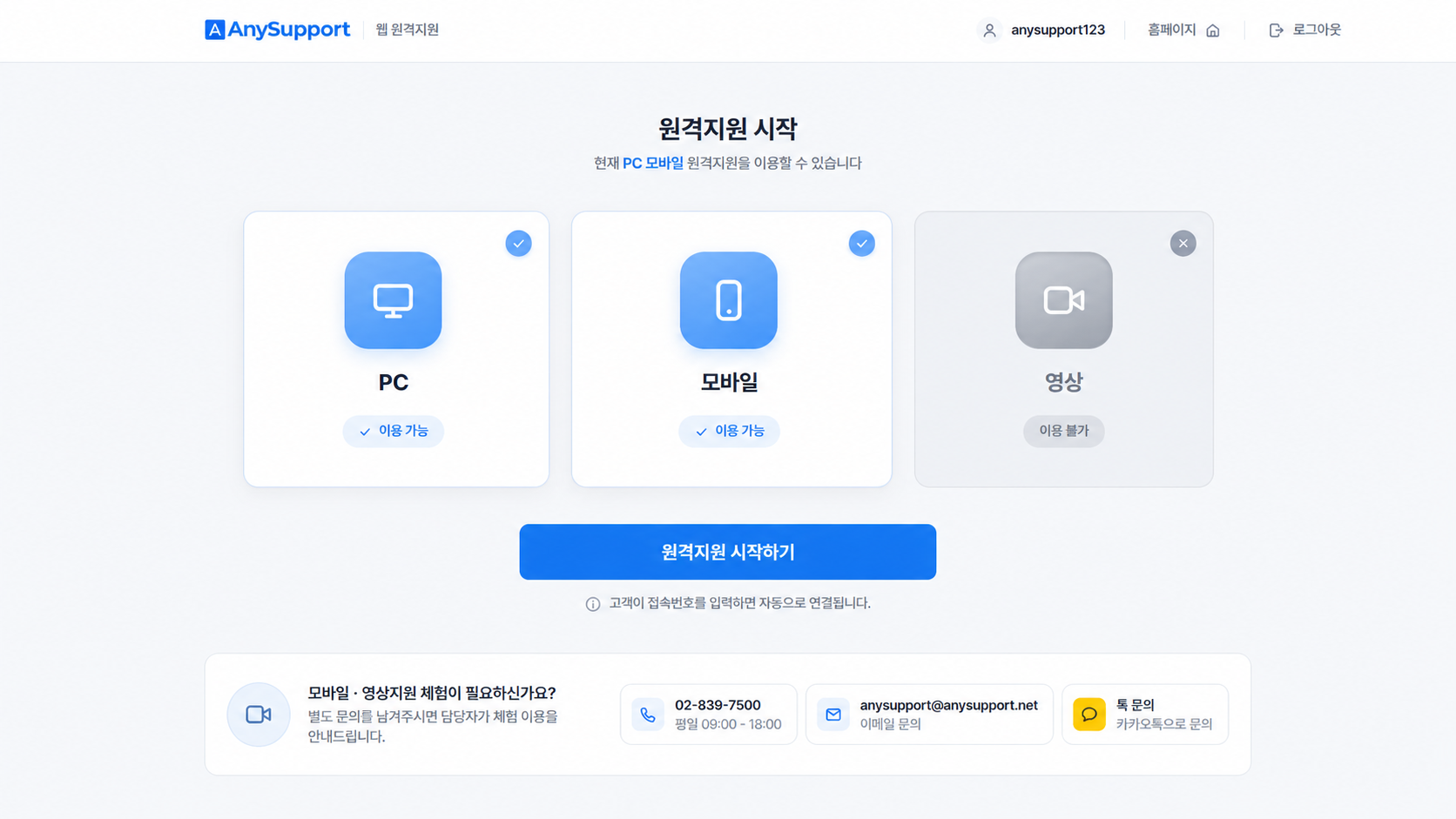
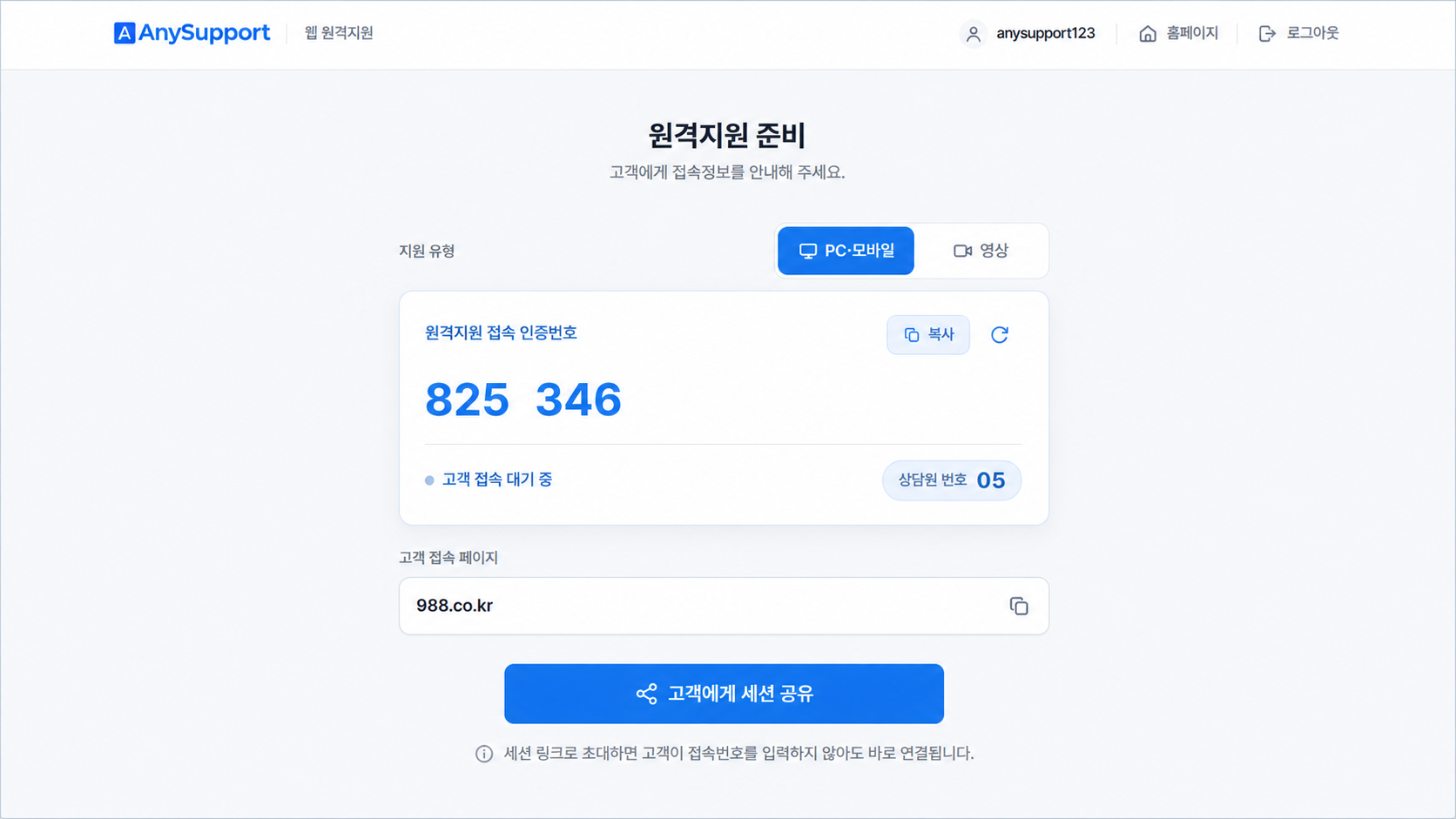
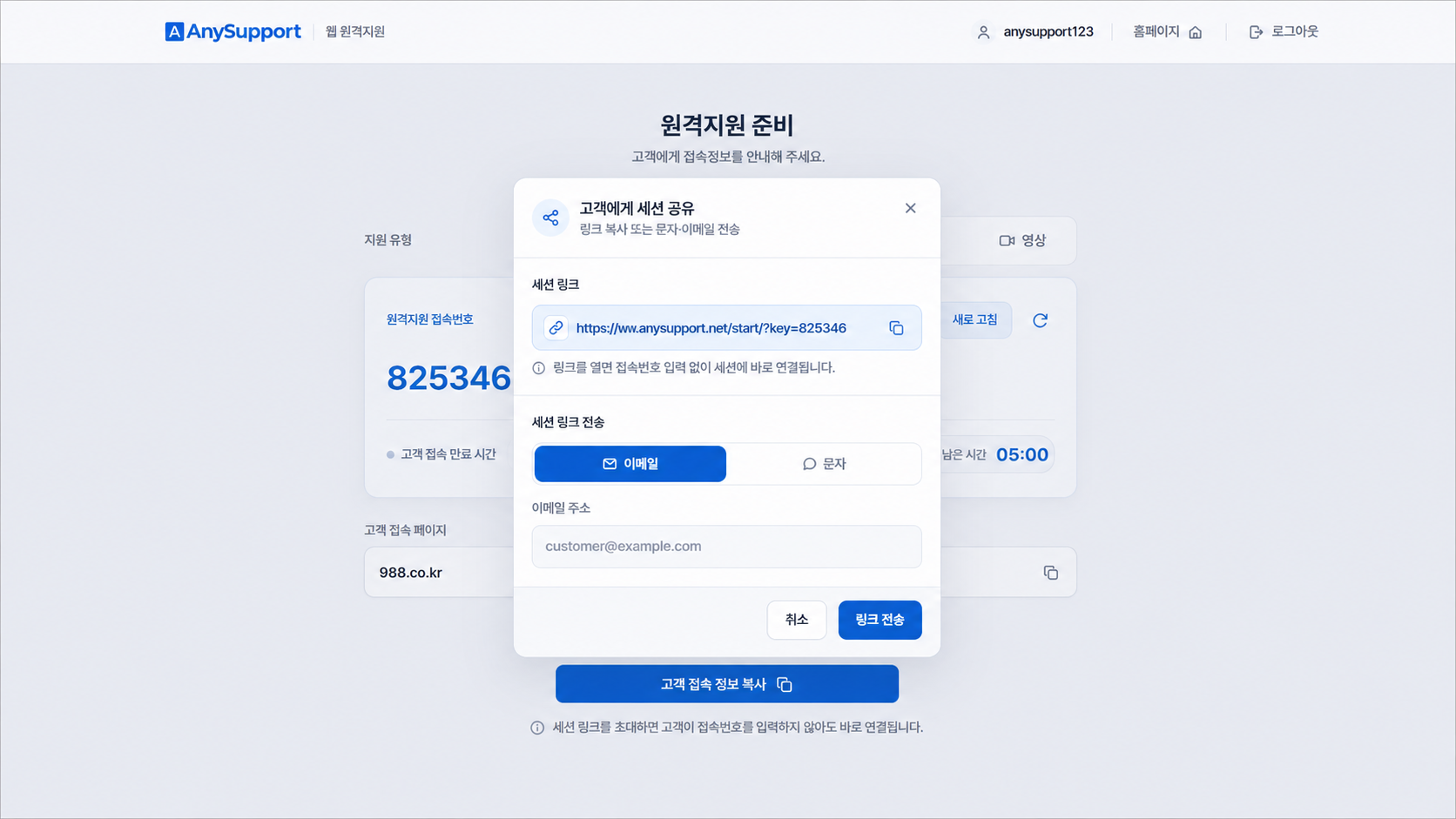
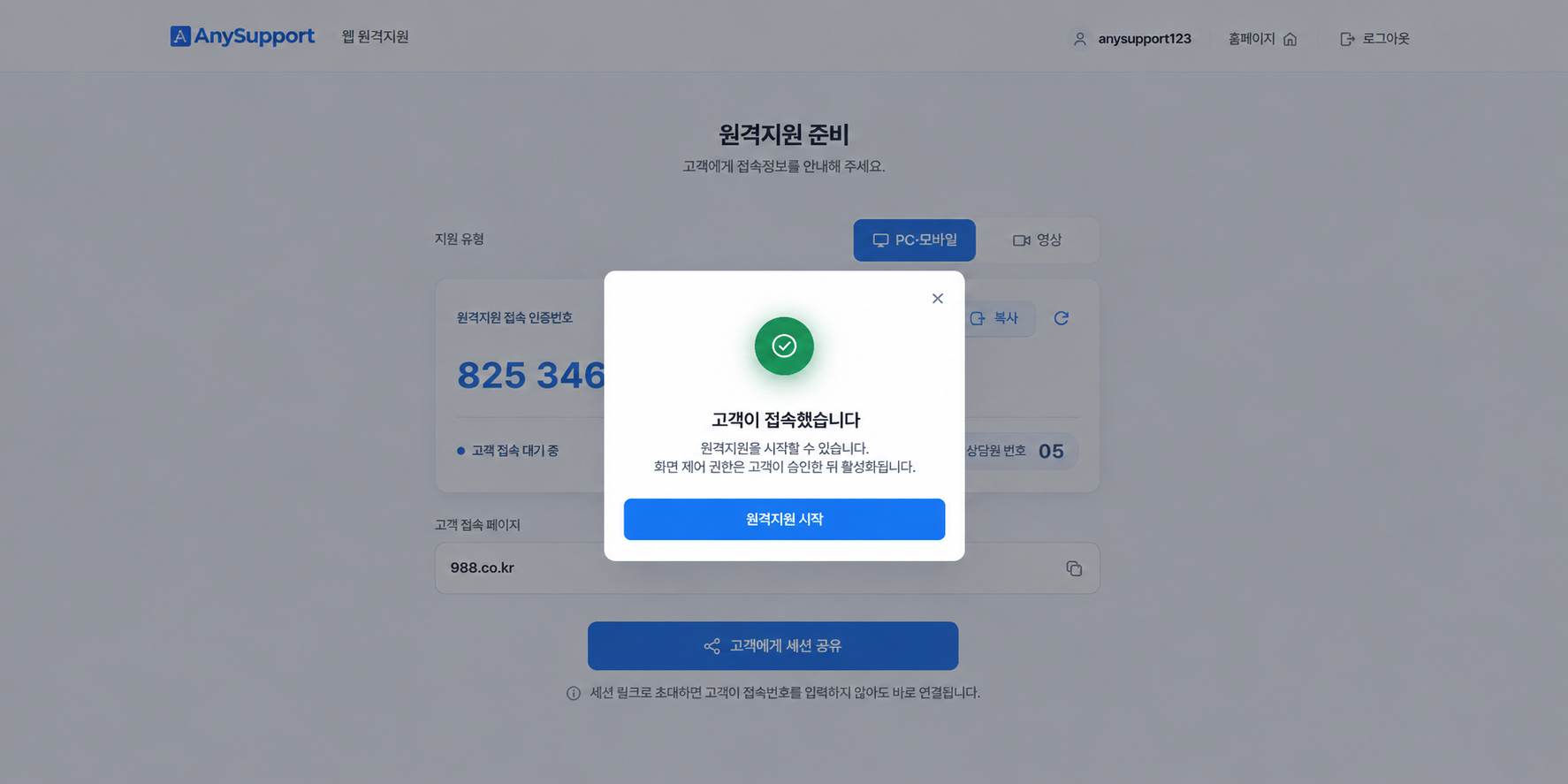
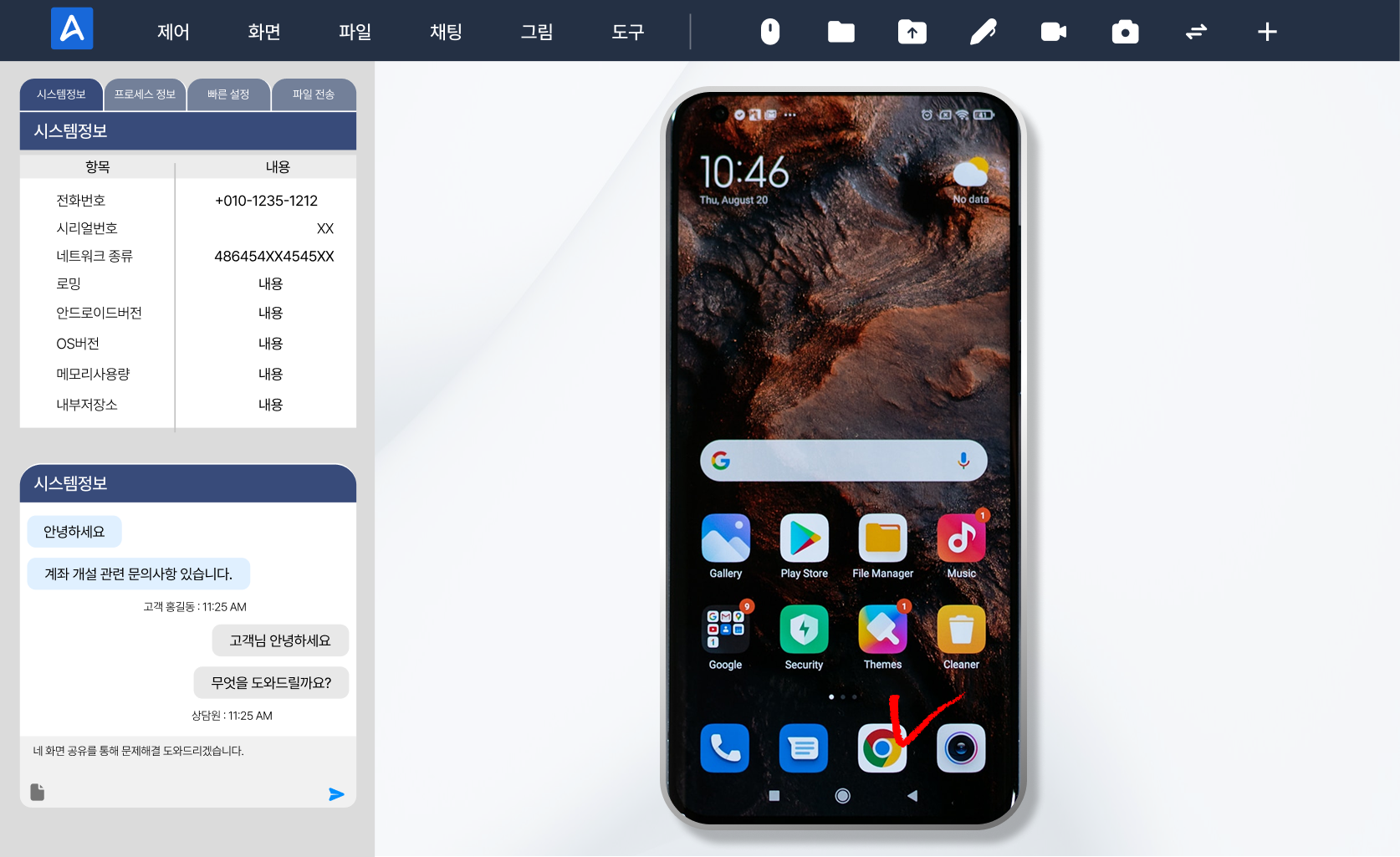
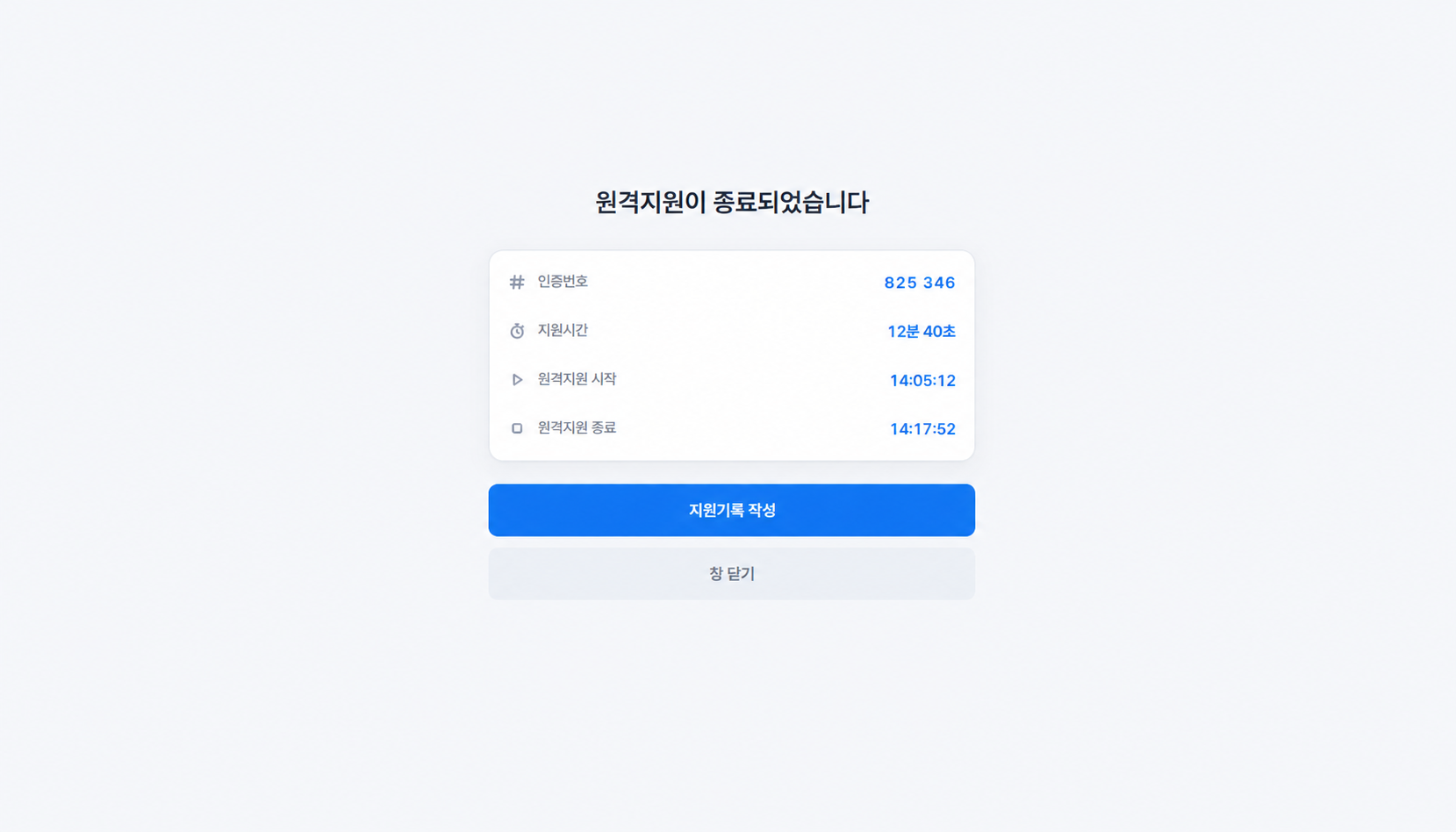
The demo screen could not be loaded. Please try again in a moment.
01 / 07
Agent login
Sign in with an agent account in the browser to start web remote support.
Web vs. installed — what's the difference?
Web remote support is an access method that removes the agent's setup barrier. Choose what fits your situation.
- Start from a browser login, with no program to install
- Fewer place/device limits — field work, home, multiple PCs
- Ready to support the moment you log in
- The customer PC connects exactly as before
- Use after installing the dedicated program on the agent's PC
- A fixed support environment centered on designated PCs
- Leverage advanced features like file transfer, session sharing, and recording
- A stable environment for always-on support work
The web isn't a new product — it's a more convenient way to use AnySupport.
Web viewer: when it helps most
Situations where web remote support makes the biggest difference.
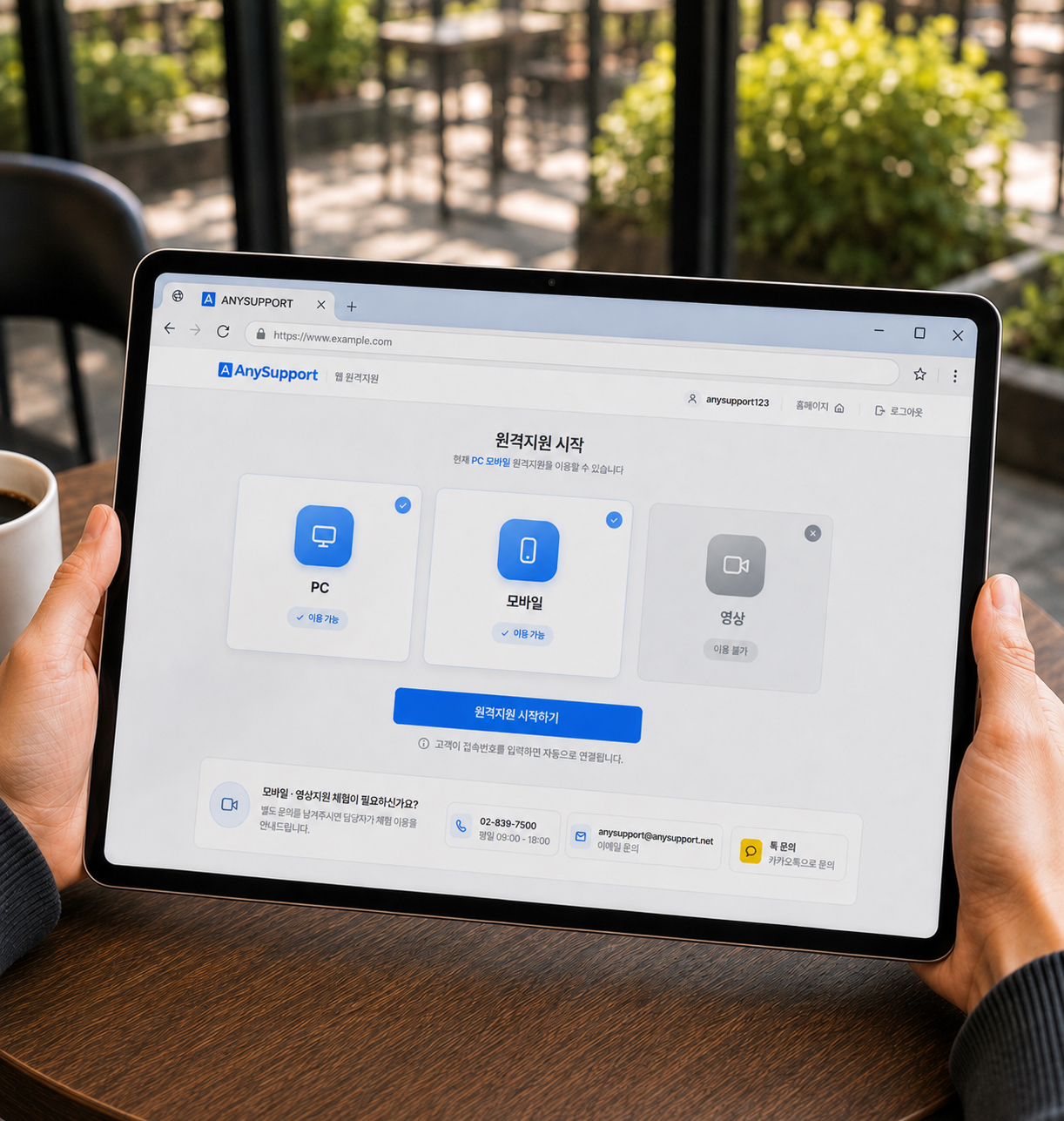
When a request arrives while you are out of the office
With a browser on a laptop or tablet, you can check the customer’s screen and respond on the move.
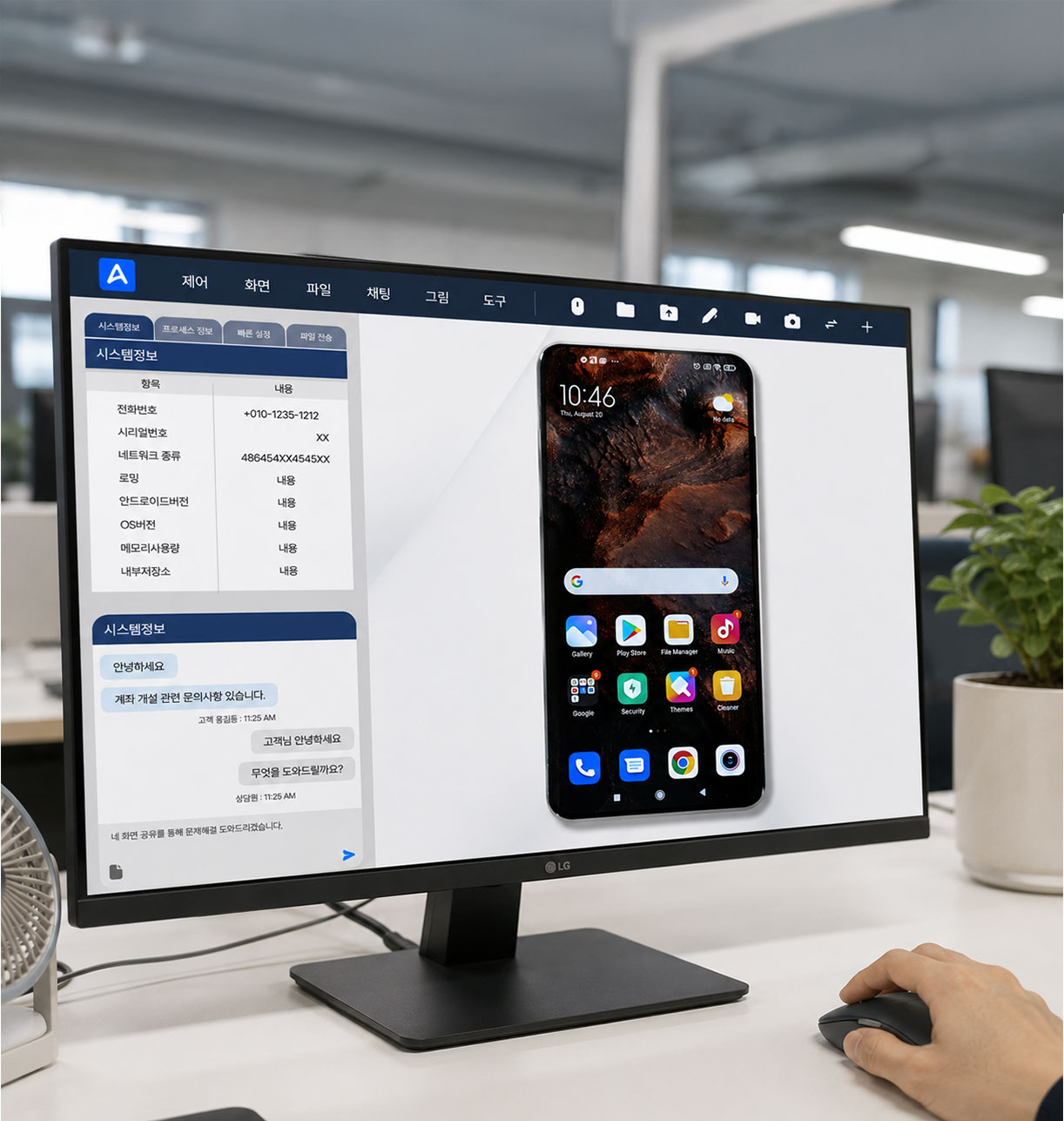
When the customer cannot explain the problem
See the customer’s PC or mobile screen yourself, find the cause and fix it on the spot.
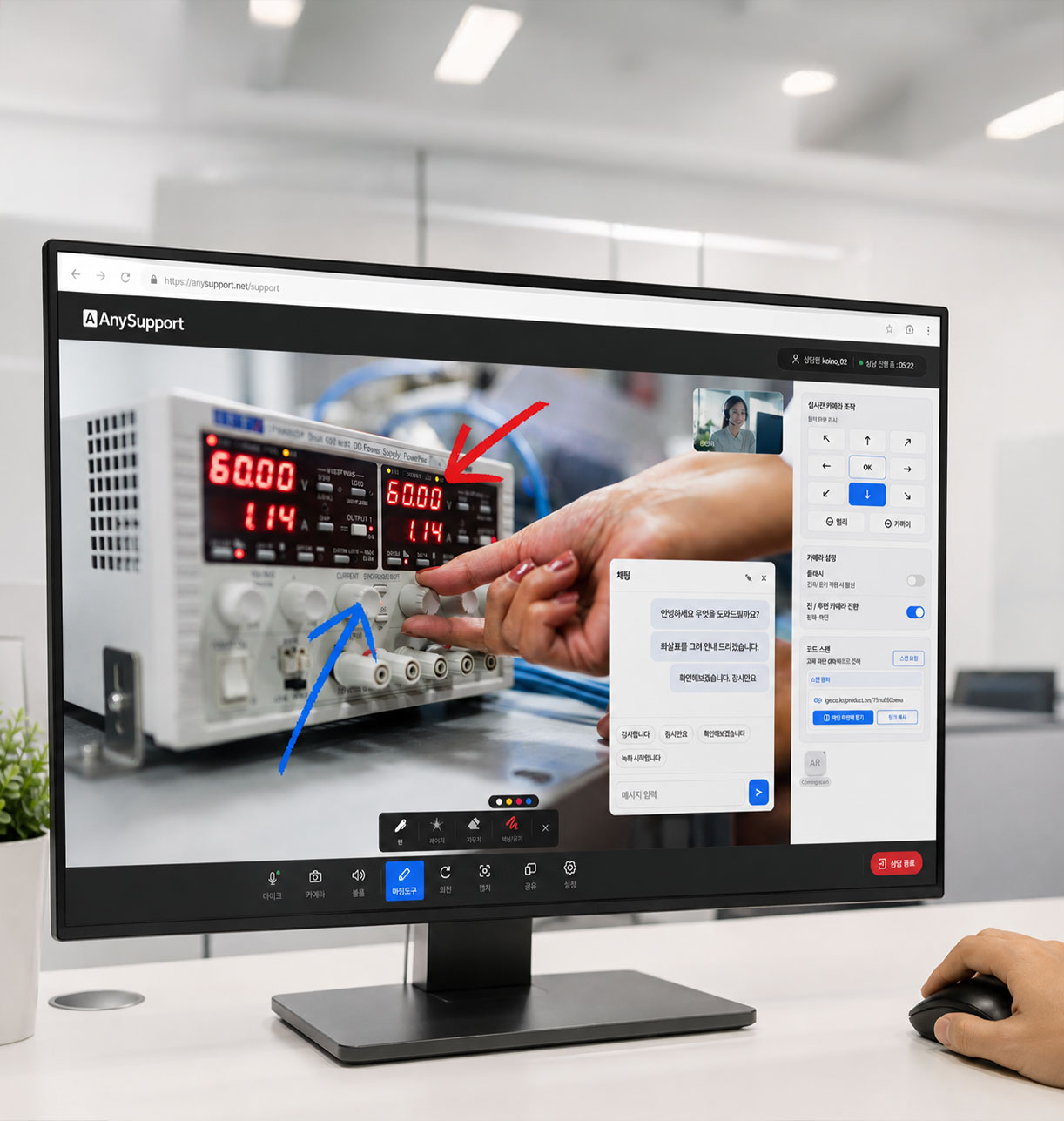
When you move between different PCs
On a shared PC or a new machine, your account is enough to pick up the same support environment.
Key features of web remote support
The remote support features you use in the installed version, available on the web.
Screen control
View and control the customer's screen in real time.
No install
No setup file — start right after a browser login.
Recording
Record the remote support session as video.
Mobile control
Control smartphones and tablets remotely.
Invite an agent
Share your screen with another agent and work together.
File transfer
Send and receive files both ways during support.
Laser pointer
Highlight a specific spot on screen to guide.
Admin tools
Manage support logs, volume, status and statistics.
Supported environments
The direct user of web remote support is the agent.
Agents log in from a browser to provide support, while customers connect via the guided access page.
View version details
- Windows 10 ~ 11 (32bit, 64bit)
- macOS 13 (Ventura) ~ 26 (Tahoe)
- Android 8 (Oreo) ~ 16 (Baklava)
- Chrome 100+ (Windows, macOS, Android) · verified 149.0.7827.201
- Edge Chromium 100+ (Windows, macOS) · verified 150.0.4078.48
- Firefox 99+ (Windows, macOS) · verified 155.0
- Whale 3.14+ (Windows) · verified 4.39.410.14
- Opera 80+ (Windows, macOS) · verified 135.0.5973.76
- Safari 15.4+ (macOS) · verified 26.6.1
View version details
- Windows 10 ~ 11 (32bit, 64bit)
- macOS 13 (Ventura) ~ 26 (Tahoe)
- Android 8 (Oreo) ~ 16 (Baklava)
- iOS/iPadOS 16 ~ 26
- Chrome 100+ (Windows, macOS) · verified 149.0.7827.201
- Edge Chromium 100+ (Windows, macOS) · verified 150.0.4078.48
- Firefox 99+ (Windows, macOS) · verified 155.0
- Whale 3.14+ (Windows) · verified 4.39.410.14
- Opera 80+ (Windows, macOS) · verified 135.0.5973.76
- Safari 15.4+ (macOS) · verified 26.6.1
- Chrome 100+ (Android)
- Samsung Internet 16+ (Android)
- Safari 15.4+ (iOS/iPadOS)
Some control features may be limited by the mobile device's OS and manufacturer policy.
For the best experience, we recommend using the latest browser version.
Available support features may vary depending on your AnySupport license.
Web Viewer FAQ
The questions we hear most often before teams roll out browser-based remote support.
Q1We already use AnySupport. Do we have to purchase it separately?
If you already subscribe to AnySupport, Web Viewer is included at no extra cost. Simply sign in with your existing agent account — no separate contract or additional licence is required.
Q2How do we start using it?
Open the Web Viewer address in your browser and sign in with your existing agent account. Give the customer the 6-digit access code, or send the session link by email or SMS so they can connect from the customer page. Nothing is installed on the agent’s PC.
Q3How is it different from the existing connection method?
With the existing PC remote support, the agent downloads and installs a dedicated program before running it.
Web Viewer starts from a browser sign-in alone — Chrome, Edge, Whale, Safari and more — so agents working from the field or from home can move between PCs with far fewer restrictions.
Q4Are there feature differences compared with the installed program?
Web Viewer covers the core support features: screen control, file transfer, session recording, inviting another agent for collaboration, and the laser pointer and drawing tools.
Some advanced features remain exclusive to the installed program, so please confirm the features your team relies on before rolling it out.
Q5If the customer is on mobile, can they connect from the web?
When the supported device is an Android or iOS phone, the customer still installs the dedicated application as before. Web Viewer replaces the agent-side environment with a browser; the way mobile customers are supported does not change.
Start web remote support now
Try it in your real workflow first with a 15-day free trial.